Create Email Account in CPanel
Introduction
Creating an email account in cPanel using your own domain (such as info@yourdomain.com) is one of the most important steps toward giving your website a professional image and building trust with your customers, instead of relying on a generic free email provider. cPanel, one of the most widely used hosting control panels, makes it easy to create as many email accounts as you need without requiring deep technical expertise. In this article, we’ll walk you through creating an email account tied to your domain, configuring its basic settings, and accessing it from any device.
Why You Need an Email Address on Your Own Domain
- Higher credibility: An address like sales@yourcompany.com looks far more professional than a generic Gmail or Yahoo address.
- Full control: You own all the data and permissions for the account.
- Multiple mailboxes: Depending on your hosting plan, you can create unlimited addresses for different departments (support, sales, management).
- Easy integration: The account can be connected to tools like Outlook or mobile apps with minimal effort.
Steps to Create an Email Account in cPanel
1. Log In to Your cPanel Dashboard
Open your browser and go to the URL provided by your hosting company, usually in the form `yourdomain.com/cpanel`, then enter your username and password.
2. Navigate to the Email Section
From the cPanel home screen, look for the Email section and click on the Email Accounts icon.
3. Create a New Account
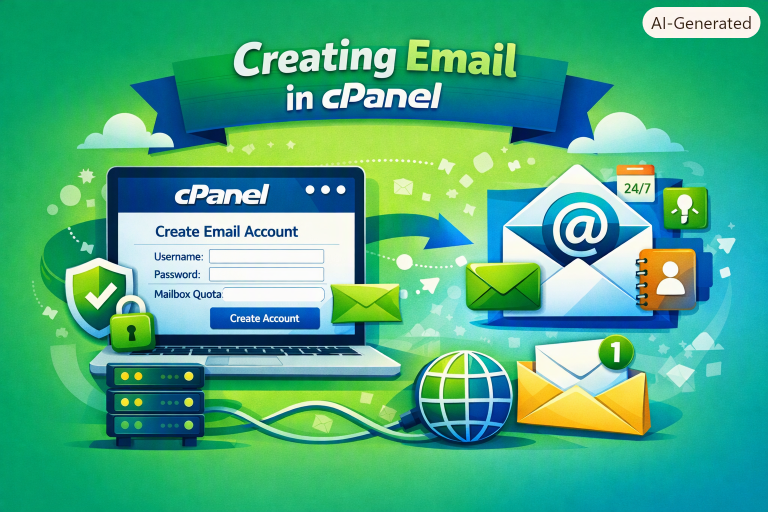
Click the Create or + Create button, then fill in the following details:
- Username: The part before the @ symbol, such as “info” or “support”.
- Domain: Select the relevant domain if you have more than one added to your account.
- Password: Choose a strong password, or use the built-in password generator.
- Mailbox Quota: Set a storage limit for the account, or leave it unlimited depending on your plan.
4. Confirm the Creation
After filling in the details, click Create to finish the process. The new account will immediately appear in your list of email accounts.
Contact Us For More Details
How to Access Your Email After Creating It
There are two main ways to access your new mailbox:
1. Webmail: From the same Email Accounts page, click Check Email next to the account you want to access. This opens a browser-based interface (such as Roundcube or Horde) where you can manage your messages directly.
2. External mail clients: Such as Outlook, Thunderbird, or mobile apps, using the IMAP/POP3/SMTP settings that cPanel automatically provides (covered in detail in a separate article).
Tips for Managing Your Email Efficiently
- Use strong, unique passwords for each email account.
- Enable the Auto Responder feature for automatic replies while you’re away.
- Monitor your storage usage regularly to avoid missing incoming messages.
- Set up Forwarders to route messages between accounts when needed.
Frequently Asked Questions (FAQ)